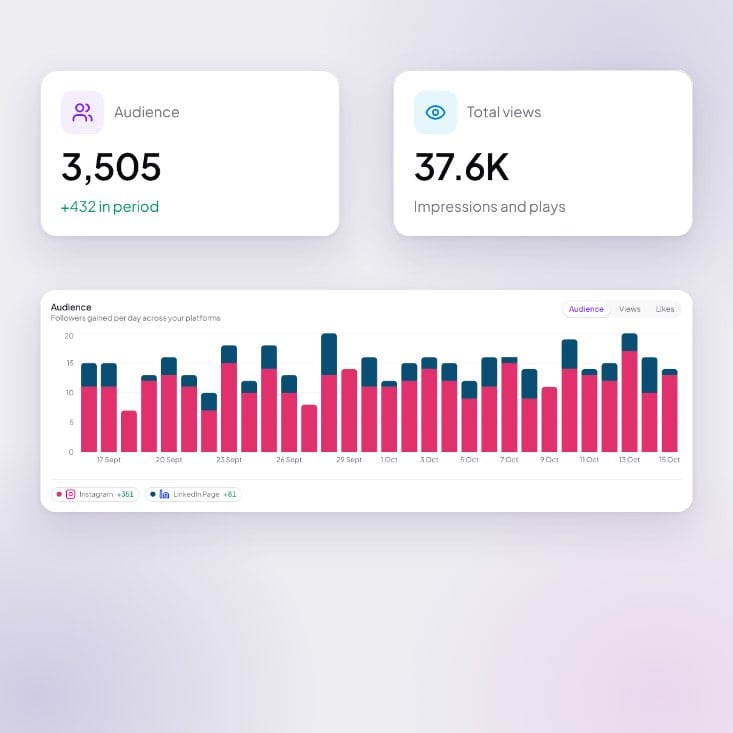
One page for every platform you connect. Example with sample numbers.
How do I see results for a different time period?
Use the range switch at the top to choose 7 days, 30 days or 90 days. If your business also posts from personal accounts, an accounts switch appears. Choose All accounts, Business or Personal.How do I see which accounts are connected?
Select the N connected pill at the top to open Connections. It lists your handles by brand. Select Connect more or manage to add or change accounts. See Connect Instagram, Facebook, LinkedIn and X. Platform pills sit under the header. They show All and each connected platform, with its follower count. The Facebook pill also adds a Page insights panel.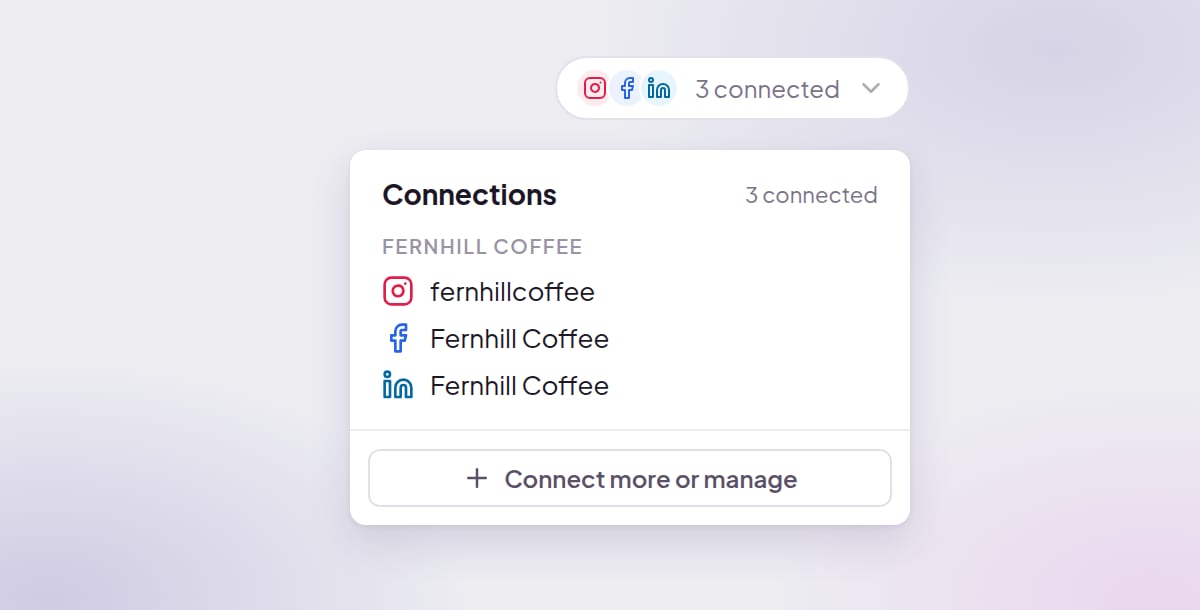
Example with sample accounts.
What do the stat cards show?
- Audience, with +N in period for the range you chose.
- Total views, which counts Impressions and plays.
- Most viewed.
- Most liked.
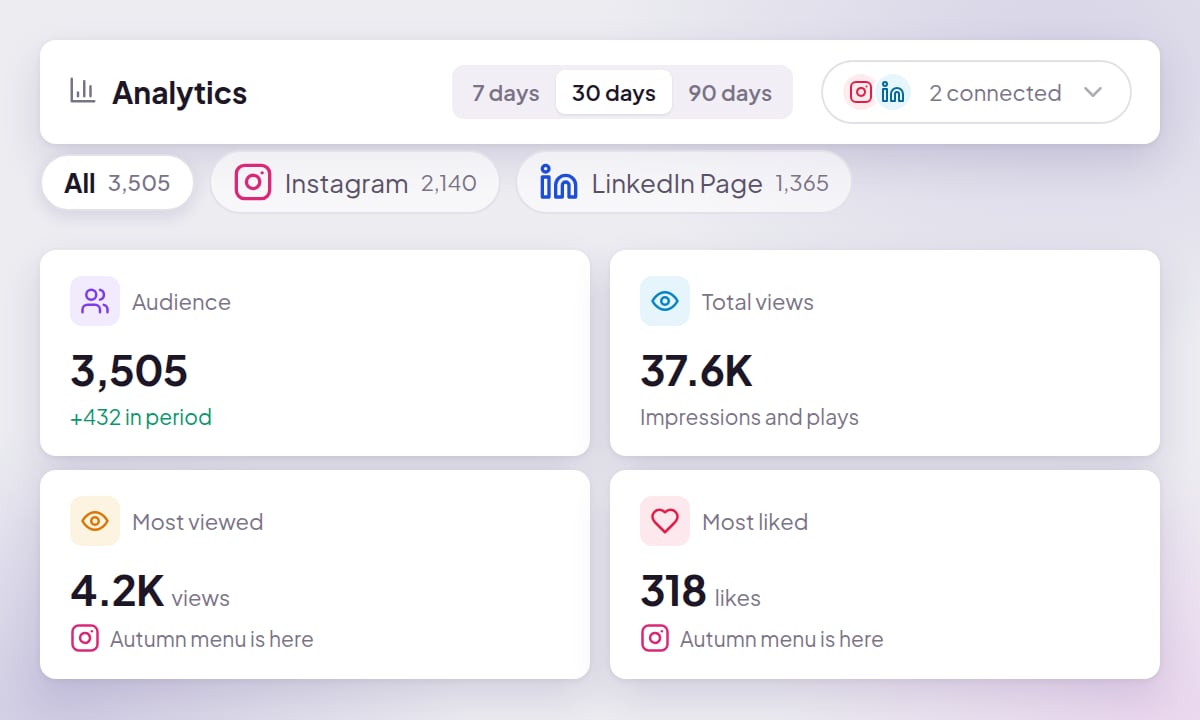
Example with sample numbers.
How do I read the chart?
Use the toggle to switch the chart between Audience, Views and Likes. The bars are stacked and coloured by platform. Select a bar to see Published on {day}. Use the legend chips to hide or show a platform. Each chip shows that platform’s change. Follower change per account appears only when a platform has one account. If there isn’t enough history yet, Audience shows We count your followers once a day. Your chart starts filling in from tomorrow. Views and Likes show Views and likes appear here once a post you published through Rheos has been live for a day.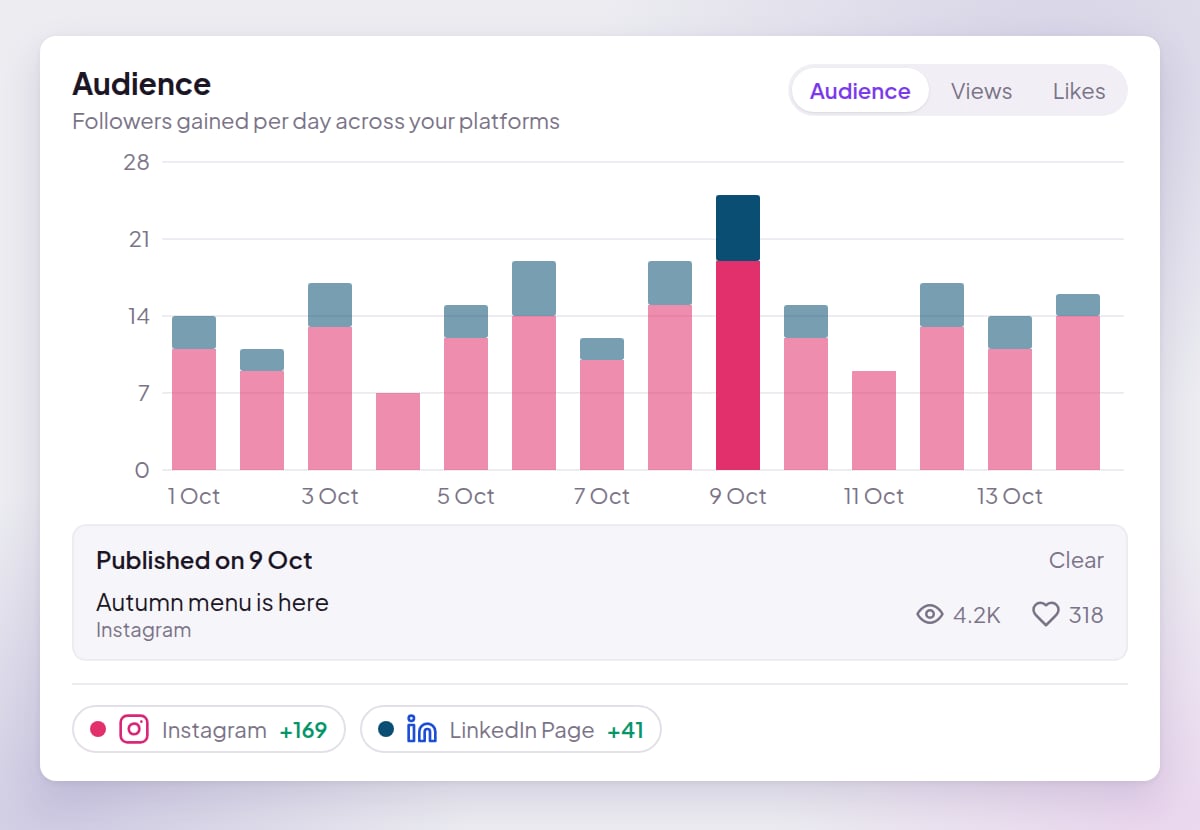
Example with sample numbers.
How do I find my best posts?
The Post review lists your posts with Views, Likes and Performance columns. Performance compares each post with your own usual results. A post that does far better than usual shows a high number in green, such as 3.1×. Switch between Table and Grid at the top right. To see a post’s detail or delete it, open the post from Home or Recent in the sidebar. Its numbers and Delete are in the Analytics column. See Delete a published post.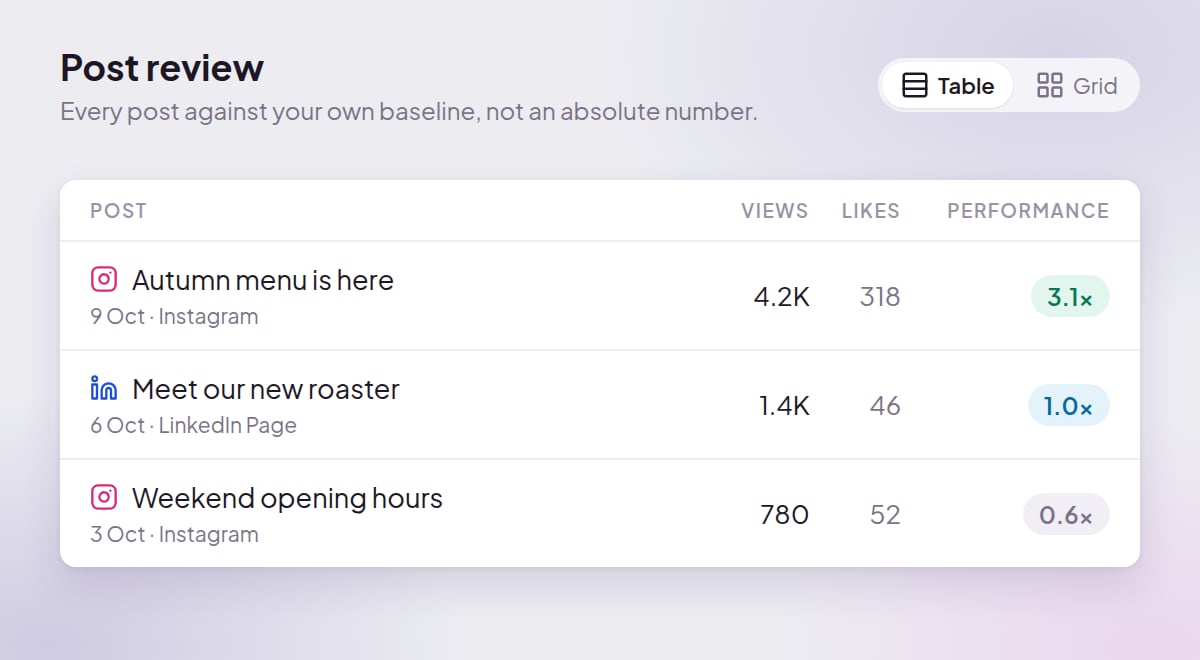
Example with sample numbers.
Which platforms report numbers?
Rheos shows post stats and account numbers for:- X
- LinkedIn company Pages
Why are my numbers missing?
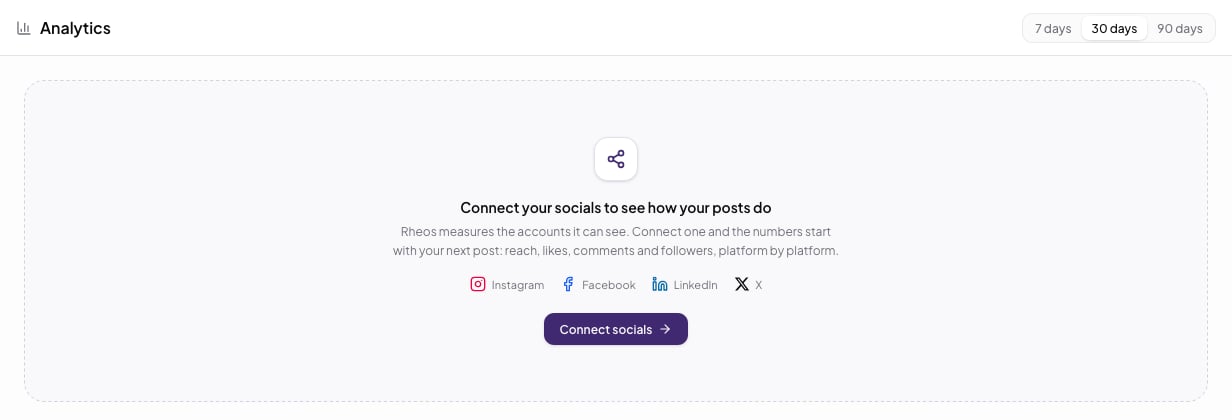
- No accounts yet. The page reads Connect your socials to see how your posts do. Select Connect socials to start.
- New accounts. The page reads Your publishing baseline is on its way until Rheos has enough history.
- Chart needs more history. It needs two days of follower snapshots before it shows changes.
- Numbers didn’t load. The page reads Analytics failed to load. If numbers were already showing, it reads Couldn’t refresh analytics — these are the last numbers that loaded. Select Try again.
What to do next
Connect your social accounts
Add accounts so Analytics has numbers to show.
Schedule a social media post
Publish more to build up your history.