

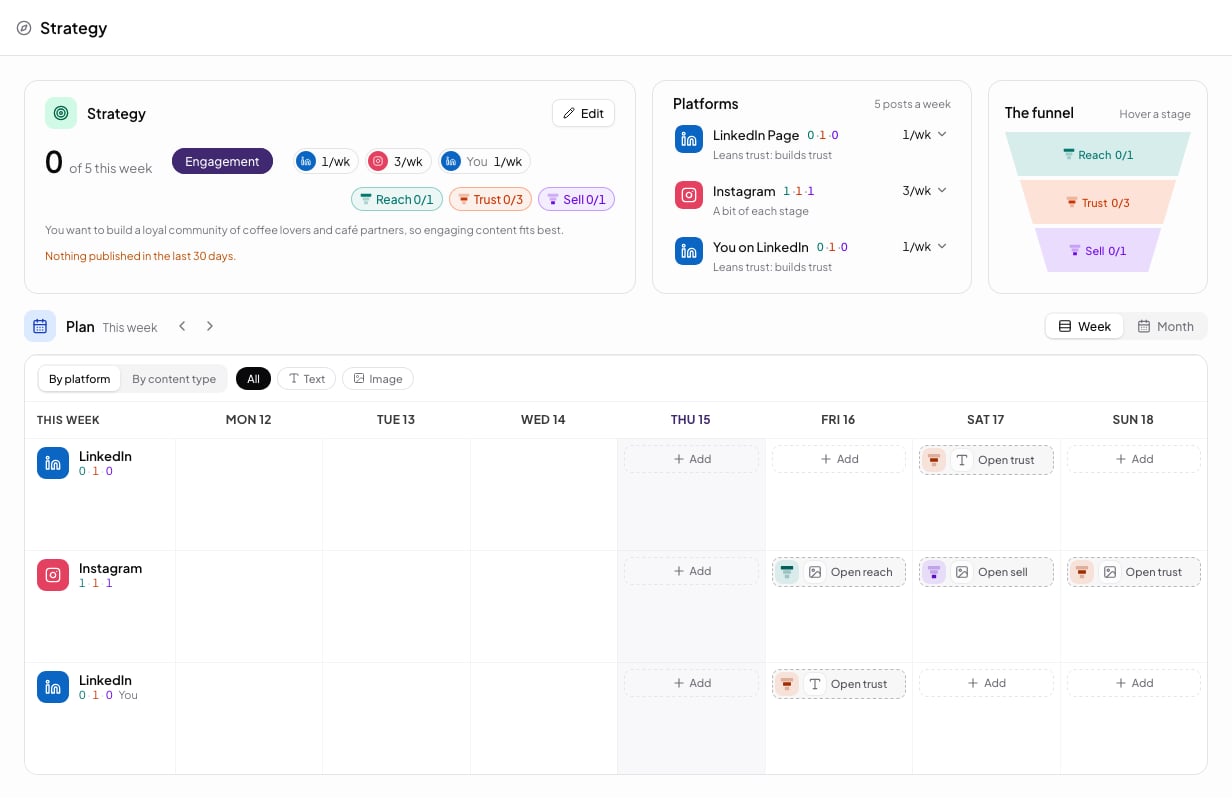
Your week of posts on the Strategy page, each marked Reach, Trust or Sell.
How do I change how often I post?
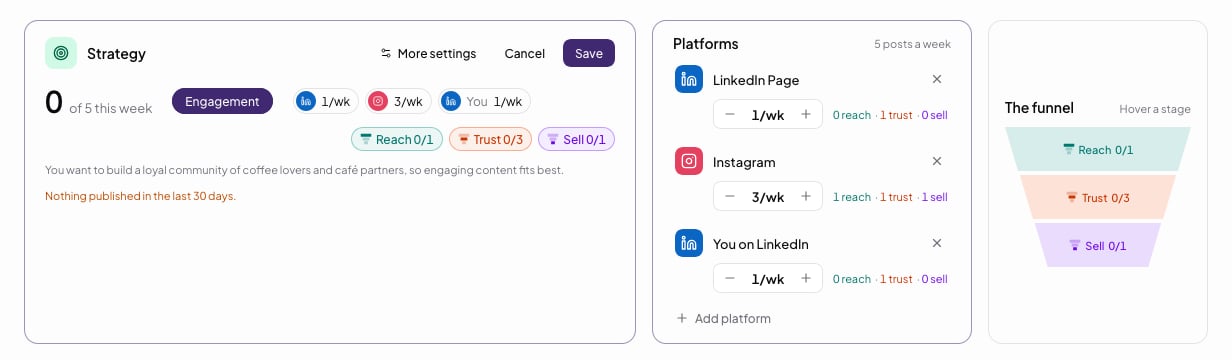
- Select Edit.
- Use − and + on a platform to change its posts a week, shown as N/wk.
- Select the X on a platform to remove it, or Add platform to add one.
- Select Save, or Cancel to leave without changing anything.
What do Reach, Trust and Sell mean?
- Reach brings strangers in.
- Trust turns them into people who trust you.
- Sell asks for the call.
What does the Strategy page show?
The Strategy card shows:- N of M this week, the week’s count against the plan.
- The goal, one of Awareness, Engagement or Conversions.
- A chip for each account, with its posts a week, for example You 1/wk.
- Stage chips, such as Reach 1/2, one for each stage.
- A one-line reason from Rheos for the plan.
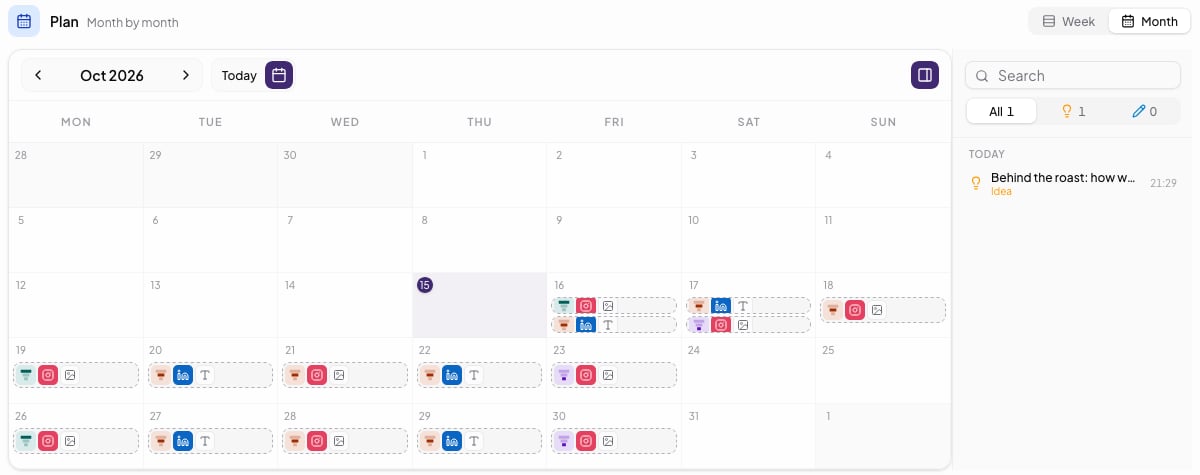
How do I see my plan by week or month?
Select Week to see the week board. It shows this week, Monday to Sunday, with a row for each platform. Past days are greyed out. Group the board By platform or By content type. Filter it with All, Text or Image. Open slots read Open reach, Open trust or Open sell. Select one to start a post for that slot. Past days can’t be selected. To add an idea to a day without opening it, select + Add. Choose a Funnel stage and a Content type, then select Add to plan. Rheos confirms with Idea added on …, and the message has an Open link.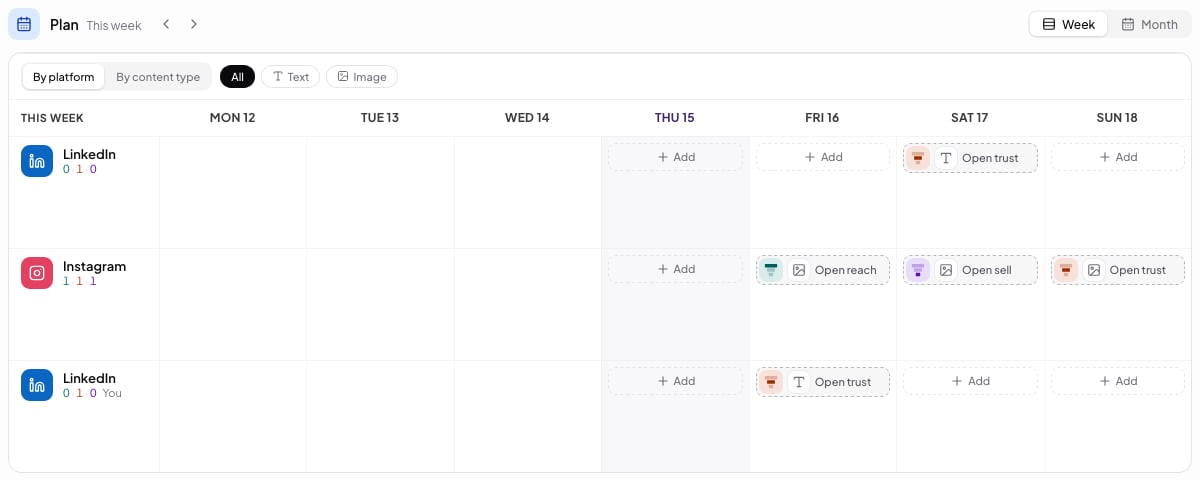
How do I take a week off or add a note?
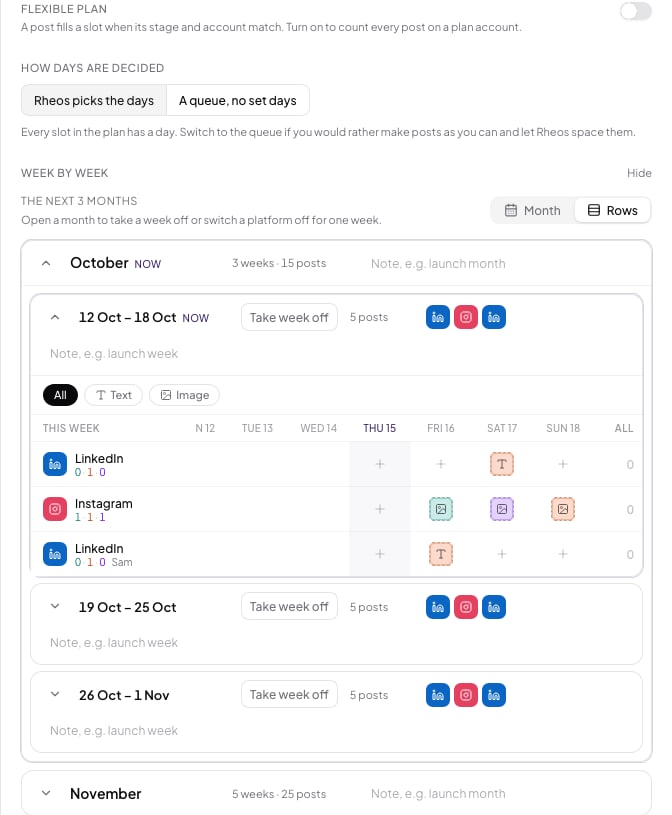
Select Edit, then More settings to open More strategy settings.- Flexible plan. When it’s off, a post fills a slot when its stage and account match. When it’s on, every post on a plan account counts towards its week, whatever its stage.
- How days are decided. Choose Rheos picks the days, or A queue, no set days. With a queue, Home shows what’s left to make each week. You still schedule each post yourself.
- Week by week. Select Take week off to skip a week. Each platform has its own tile for that week. Add a note of up to 120 characters. Rheos shows it at the top of that week on Home.
- Pillars. Select Manage pillars to edit your content pillars.
How do I undo a plan change?
Each saved change to the plan appears under History on your brand page. Select Undo there to reverse it.What to do next
Plan your week
The weekly plan, the calendar, and your ideas and drafts on Home.
Schedule a post
How the queue works and what happens when a post goes out.
Create your first post
Fill an open slot with a post.